📋 Jump to Section
Setup Guide
Digital Concierge &
Resident Directory
Set up the DoorVi Doorman app to create an interactive lobby directory — allowing visitors to search for residents and initiate calls directly from the building entrance.
📱 Doorman App
📇 Resident Directory
🔐 Access Control
📷 QR Setup
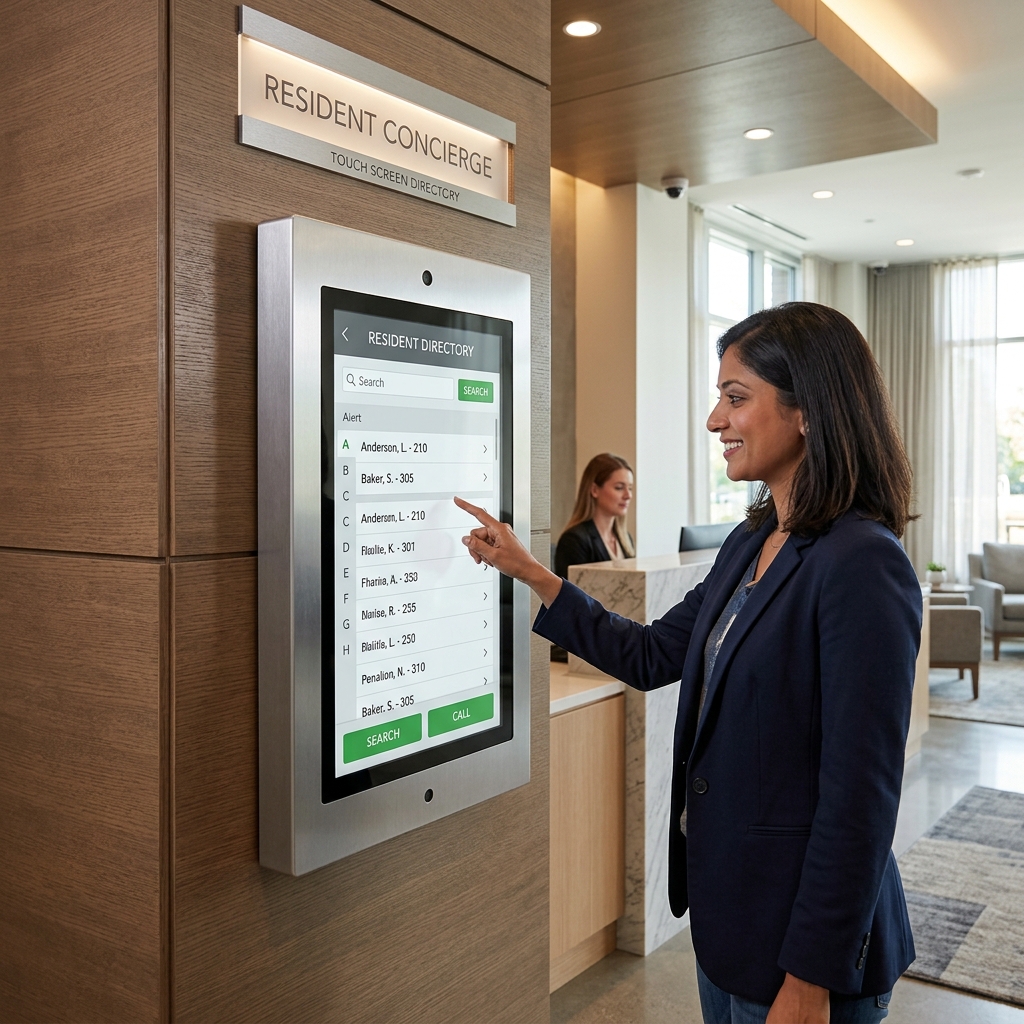
Hardware Requirements
Minimum device specifications for the Doorman app to function correctly
Minimum Supported Devices
Ensure your lobby device meets the requirements below before installation
Android
Android 11 or later
Minimum RAM: 4 GB
Apple
iOS 18+ / iPadOS 18+
iPhone or iPad
Devices running older OS versions or with less than 4 GB RAM may experience performance issues or be unable to run the Doorman app.
Download the Doorman App
Install the app directly from the Google Play Store or Apple App Store
Install & Login
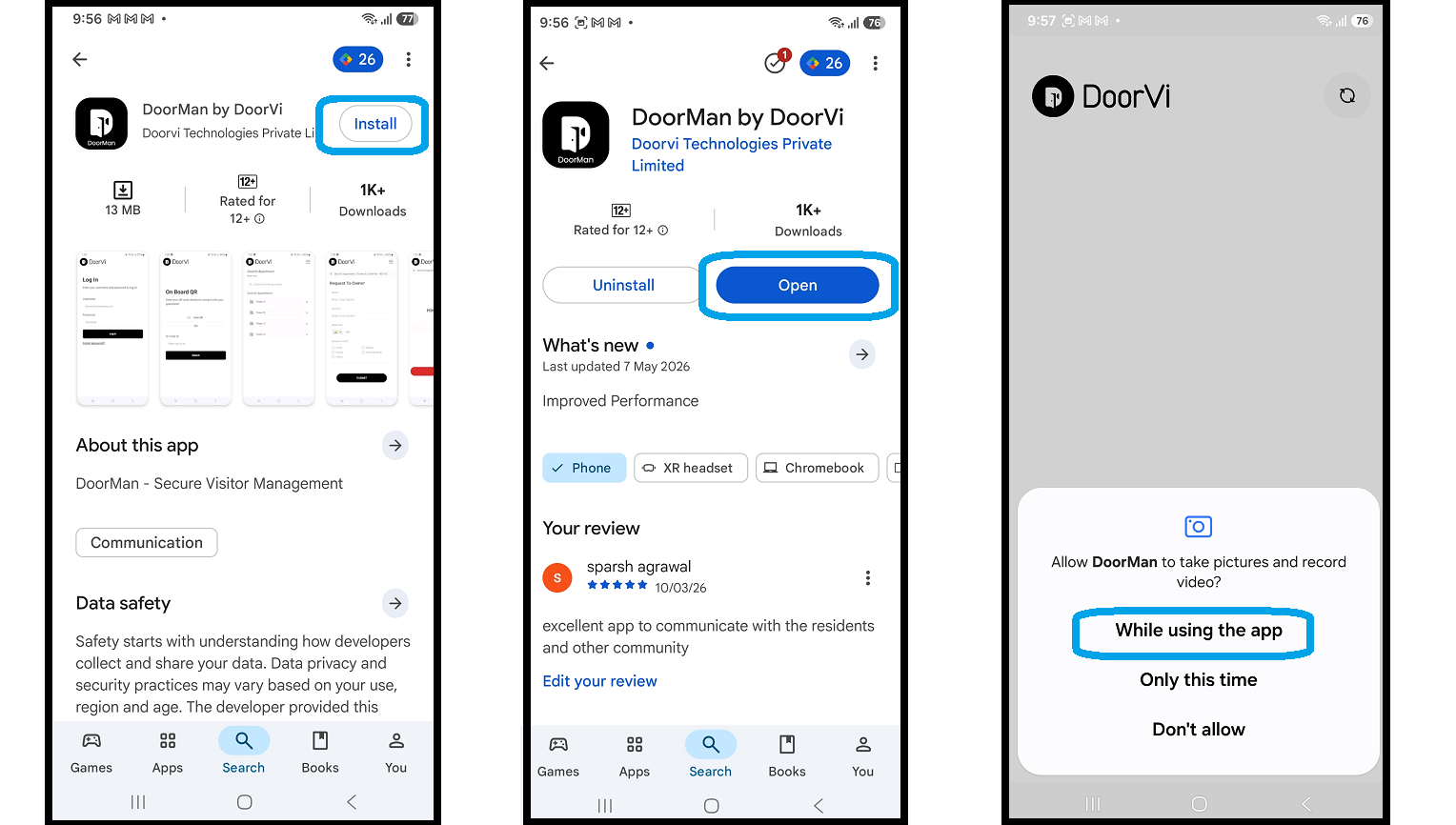
Open the Doorman app, grant permissions, and sign in with your admin credentials
Open the App & Allow Permissions
Launch the Doorman app and grant all required permissions for full functionality
1
Install the Doorman app from the Google Play Store or Apple App Store using the links above.
2
Open the Doorman app on your device.
3
Allow all required permissions when prompted (camera, microphone, notifications).
Android only: When prompted for audio or other permissions, select "While using the app" to ensure the app works correctly without asking the permissions again.
Screenshot — Permissions prompt screen
Login & Onboard QR Screen
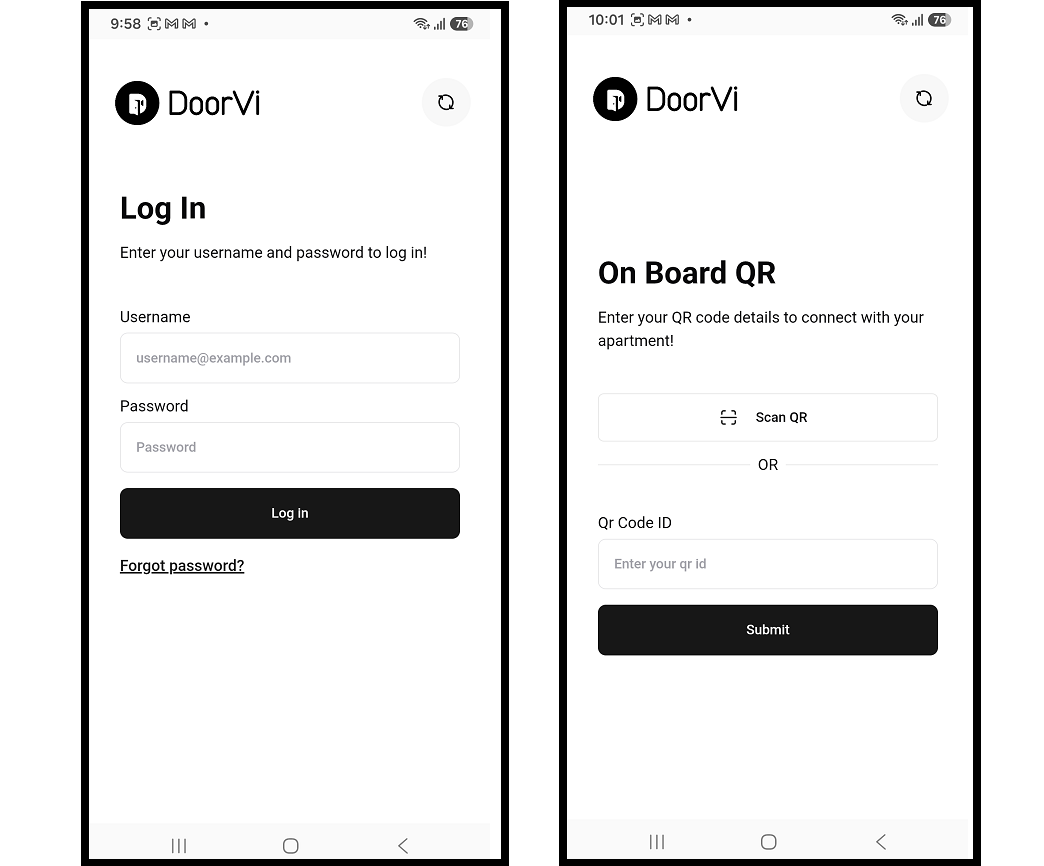
Sign in using your admin dashboard credentials to access the directory setup
4
On the login screen, enter your username and password.
5
Tap Login to sign in.
6
After a successful login, you will land on the Onboard QR screen — this is where you link the app to your building's resident directory.
Your login credentials are the same credentials you use to access the DoorVi Admin Dashboard. For login issues, contact the DoorVi support team at media@doorvi.co.
Screenshot — Login screen
Configure Your Directory
Link the Doorman app to your building to display the resident directory for visitor calling
On the Onboard QR page, you have two options to link your building:
1. Scan QR Code — use the device camera to scan a QR code.
2. Enter QR Code ID — manually type the QR code ID from the admin dashboard.
1. Scan QR Code — use the device camera to scan a QR code.
2. Enter QR Code ID — manually type the QR code ID from the admin dashboard.
Option 1 — Scan QR Code
Use your device camera to scan the building or tower QR code from the admin dashboard
1
On the Onboard QR page, tap "Scan QR" — the device camera will open.
2
To show the full building resident list, scan the main building QR code found in:
Admin Dashboard → Controls → QR Code
Admin Dashboard → Controls → QR Code
3
To show residents of a specific tower or wing, scan the individual tower QR code found in:
Admin Dashboard → Buildings → Units → Tower / Wing QR Code
Admin Dashboard → Buildings → Units → Tower / Wing QR Code
4
Hold the camera steady over the QR code. It typically takes 1–2 minutes to scan and validate successfully.
5
Once validated, the setup is complete — you will see the building and tower names displayed on screen, and the resident directory is ready for visitors.
Option 2 — Enter QR Code ID
Manually enter the 24-character QR Code ID from the admin dashboard URL
1
On the Onboard QR page, tap "Enter QR Code ID".
2
Open the Admin Dashboard and navigate to:
Buildings → (select building row) → Controls → QR Code
Buildings → (select building row) → Controls → QR Code
3
Look at the URL in your browser. It contains a 24-character alphanumeric QR Code ID.
Example:
Example:
6a3ba929ad123c0f54faa9ab
4
Copy the 24-character ID from the URL and paste it into the QR Code ID field in the Doorman app.
5
Tap "Submit" to validate.
6
After successful validation, the building name and resident directory will appear — your digital concierge is now live.
Make sure you copy the full 24-character ID exactly as it appears in the URL — including all letters and numbers. A partial or incorrect ID will fail validation.
Setup Complete!
Your Digital Concierge is now active. Visitors at the building entrance can search for any resident by name and initiate a call directly from the lobby screen.
Initiate Calls, Access & Entry Approvals
How visitors call residents from the Doorman app and how residents grant entry
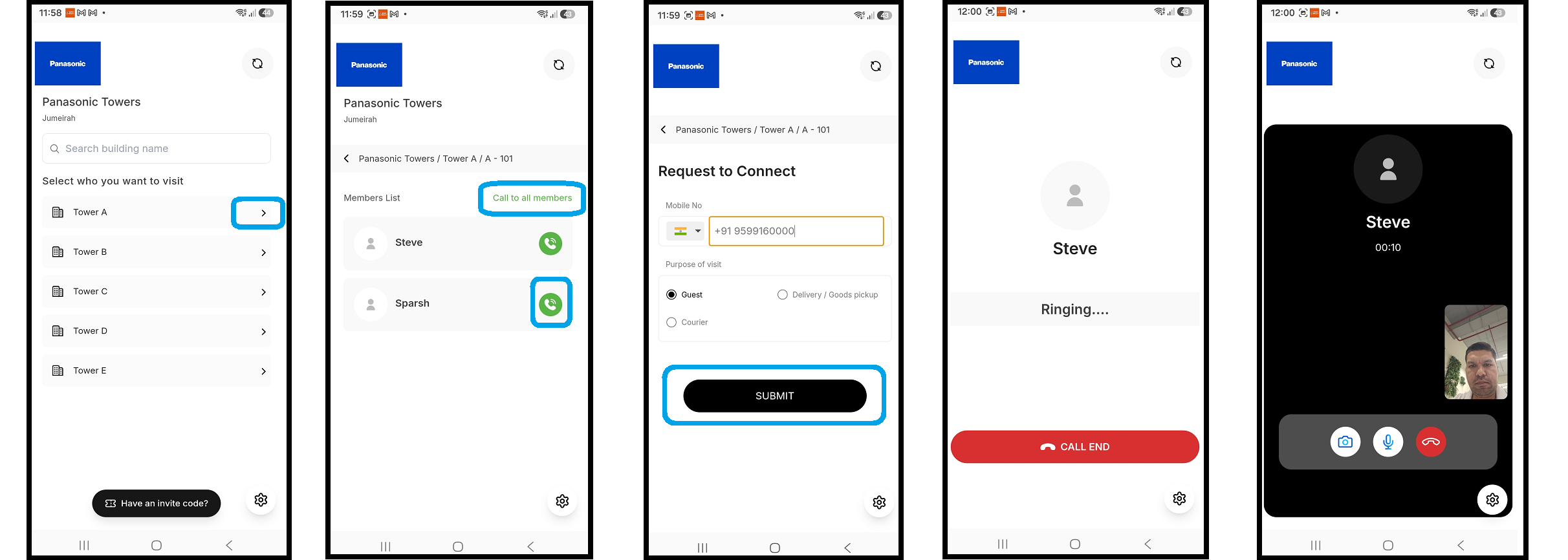
How to Call Residents from the Doorman App
Follow these steps to connect a visitor with a resident and complete the entry approval
1
Select the tower or apartment number, then select the resident you want to call.
2
You can also search for the apartment or resident name in the search bar to initiate a call to that apartment.
3
Tap the green call button to call a specific resident, or tap "Call All Members" to send a video call to all residents — whoever picks up first will be connected.
4
In the visitor form, fill in all required details such as name, phone number, and purpose of visit, then tap Submit.
5
The call will be initiated with the residents of the apartment.
6
The resident can see you and talk with you over a video call.
7
The resident has the option to allow or reject entry and can grant access for the visitor to enter.
8
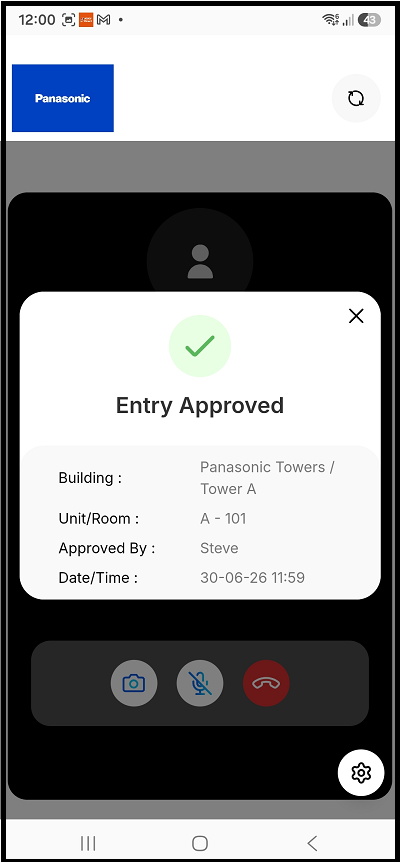
If entry is approved, visitors will see an "Entry Approved" badge in the Doorman app.
"Call All Members" rings every registered resident of that apartment at once — this is useful when the visitor doesn't know which household member to reach.
Screenshot — Resident call screen
Screenshot — Entry Approved badge
Need assistance? Contact our support team at jatin@doorvi.co or media@doorvi.co.
Pre-Approval Guest Entry
How to enter a pre-approval invite code to get access into the building
How to Use a Pre-Approval Invite Code
Guests with a host-issued invite code can verify themselves and enter without calling a resident
1
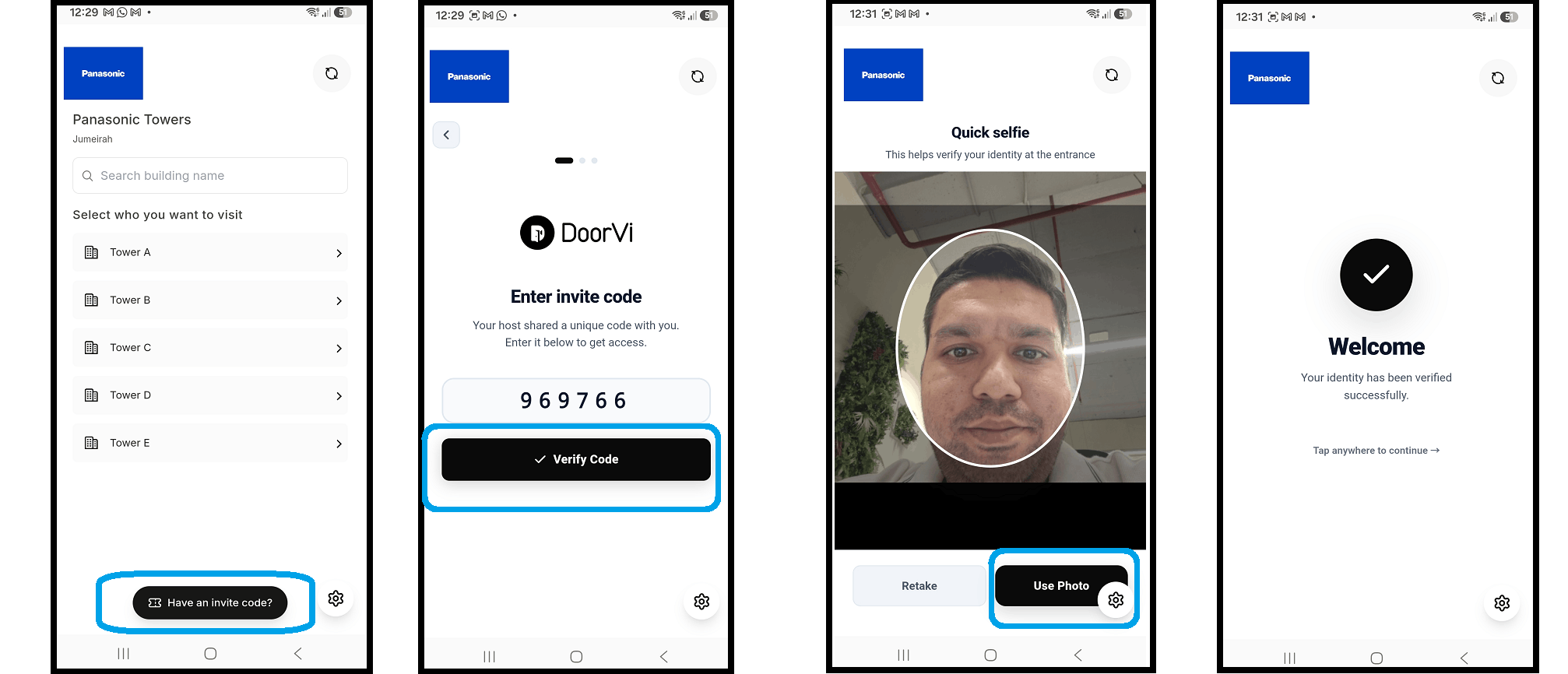
Tap the "Have an Invite Code" button in the footer of the screen.
2
Enter the six-digit invite code sent by the host, then tap "Verify Code".
3
Take a quick selfie to verify your identity.
4
Tap "Use Photo" and your pre-approval entry will be confirmed.
5
You can now enter the premises.
Invite codes are generated by the host from the DoorVi resident app and are valid for a limited time — make sure the guest uses the code before it expires.
Screenshot — Invite code entry screen
Need assistance? Contact our support team at jatin@doorvi.co or media@doorvi.co.